Apple has made iPhones one of the smartest devices you can purchase today. However, it is prone to faults, and it might happen that your iPhone won’t turn on due to software or hardware related issues.
There could be many reasons why your iPhone won’t turn on. Some of the commonly faced issues are software crash, faulty charging cable or adapter, physical damage, drained battery, etc.

Common Apple Startup Issues
If you’re facing any of the enlisted issues, then you may fix your iPhone by following the tips given later in this article. Let’s take a look at the issues —
Well, the good news is that most of these issues can be handled at home without visiting an Apple Store. Here are few quick tips that you can apply to turn on and fix your iPhone.

Also Read:8 Best Password Manager Apps For iPhone To Keep Your Passwords Safe | 2018 Edition
Tips To Restart iPhone That Won’t Turn On
These iPhone tips might save you a couple of bucks and solve your ‘why does my iPhone won’t turn on’ issues.
1. Put it on charging and wait
One of the most common reasons behind an unresponsive iPhone os the completely drained battery. If you have not used your phone for a long time and now your iPhone doesn’t turn on then it is a possibility that it lacks the power to turn on.
Plug it on charging and use the original Apple lightning cable for it. Normally, after a few minutes, you will see the charging screen with an almost empty battery on your iPhone.

If the screen appears, shed your fears as your iPhone will turn on automatically once it is charged to a certain level.
You can proceed to the next tip if your iPhone won’t turn on even after you have put it on charge.

2. Hard Reset iPhone
If your iPhone is facing software related issues, then there are possibilities that hard reset would do the trick.
Clearing all the air surrounding hard reset in iPhone, it does NOT wipe user data. Hard reset in iPhone clears RAM and kills some irrelevant processes but does not meddle with the user data.
If you are wondering how to hard reset iPhone then follow the below-given steps —
For iPhone 6s and older models
For iPhone 7 and models released after it
After the Apple logo appears, your iPhone will start normally and your ‘iPhone won’t turn on’ problem will be solved. If not, you’re able to head to the next tip to turn on your iPhone.
Also Read:How To View Saved Passwords And Credit Cards In iPhone Running iOS 12?
3. Try Changing Lightning Cable and Adapter
If the previous trick did not work for you, you could try changing lightning cable or adapter with which you are charging your iPhone. It is possible that your charging cable has stopped working and it is preventing your iPhone from getting charged. you’re able to try your cable/adapter with other any other iOS device, or you can change it altogether if you have a spare one.
4. Restore With iTunes
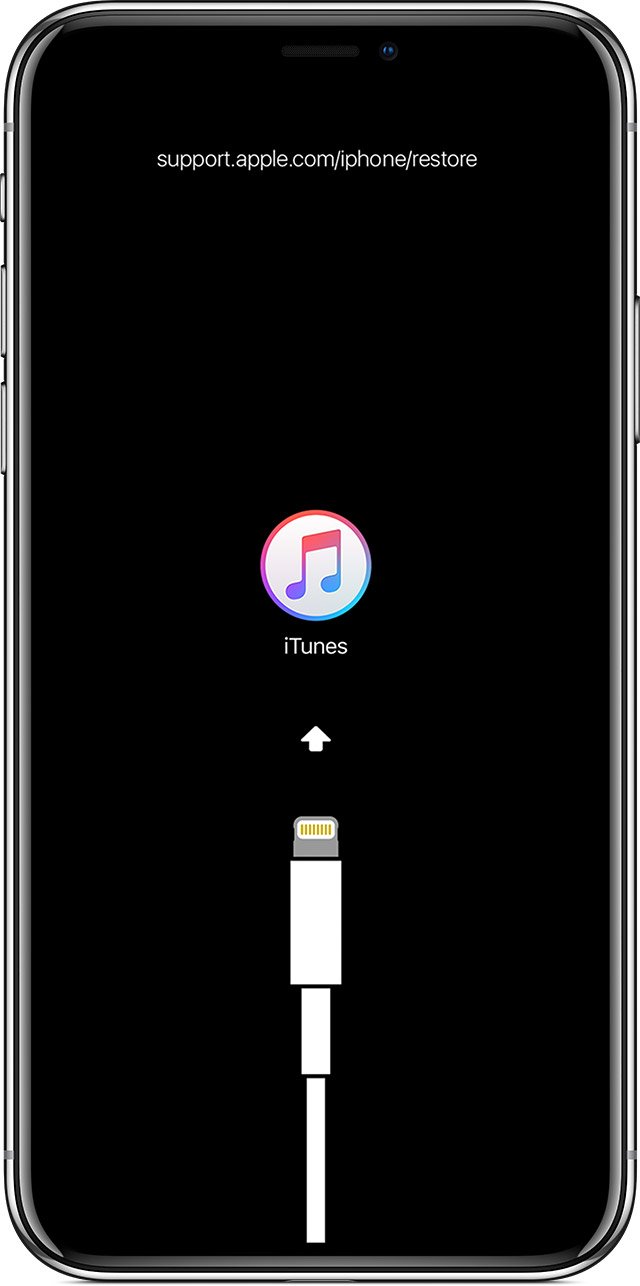
If your iPhone has turned on, but it’s stuck on boot or if red or blue screen appears on startup, then you need to install iOS in your iPhone with the help of iTunes.
There is no loss of your personal data when updating iOS through iTunes if you choose the ‘Update” option. However, if you choose “Restore,” entire data stored on your iPhone will be wiped.
5. Contact Apple Support
If nothing works to fix an iPhone that won’t turn on, you can always approach Apple support. If your phone is in warranty or if you have an AppleCare plan, your iPhone will be fixed without shelling out much money.
Conclusion
Technology is prone to faults and iPhones are no exception. Given the steep increase in the price of iPhone and the latestiPhone XsMax crossing the $1,000 mark, an iPhone that has stopped working could mean a real pain for the iPhone owner. Thankfully, the tips given above can help you resuscitate your iPhone that won’t turn on. So do give them a try and share your valuable feedback.
