Lots of times you may want to print something, only to find that you have no printer ink or that you aren’t near a printer. Your Mac comes with a useful function in the macOS printing menu that lets you save anything you want to print as aPDFfile to print or share later. We’ll show you how you can make a PDF out of anything you intend to print in this tutorial.
Creating a PDF from your Mac’s printer menu
Your Mac will let you save documents, web pages, images, and many other kinds of printable content as PDF files so you’re able to share or print them later on.
This feature was built into macOS as not only a way to make sharing and printing information easier, but also to give you an offline software copy of something that you could get back to later on if printing resources are not immediately available at the time you receive the information.

I’ve been using this feature a lot lately, because a lot of the time, I’ll work from home, or I’ll work out and about. In the scenarios where I work out and about, I don’t have a printer near me, but I will certainly want to save what I intend to print so I don’t forget to print it later.
One place where this helps a lot is when I want to return an item onAmazon, but I’m out and about and the seller finally accepts my return request. This feature lets me save the return label and instructions as a PDF so I can print them when I get home, because believe me, if I don’t see the file on my desktop when I get home, I will forget to print it.
So this helps me not only to have a printable copy at the ready when I’m home, but having the PDF file on my desktop also serves as a reminder as soon as I see it.
How to do it
To access this feature, open something you want to print, whether it’s a web page, a document, or heck, even a return label from Amazon. Then, follow these steps:
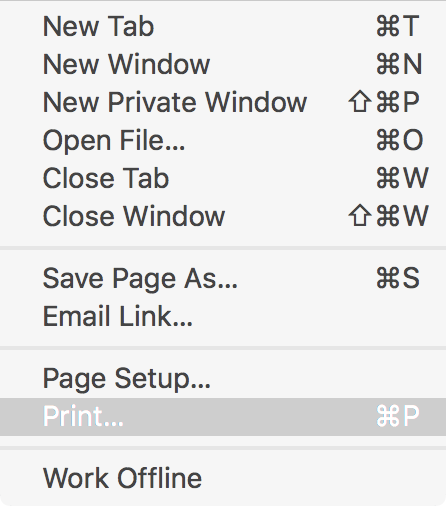
1)With the content you want to save as a PDF open, go toFile> Printin theMenu Bar.

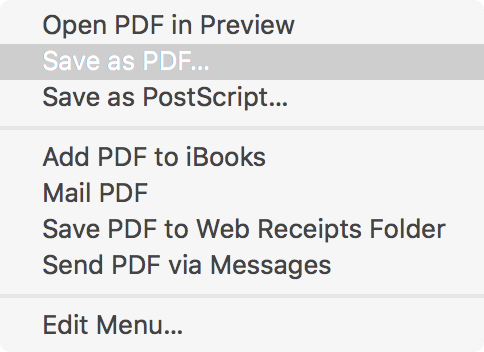
2)Click on the PDF option at the bottom of the printing options prompt.
3)From the drop-down menu, click on theSave as PDF…option.
4)Next, you’ll be asked to enter a name for the PDF file and choose the location where it will be saved. Fill out the information to your liking:
5)Once finished, you can click on the blueSavebutton.
6)Your saved PDF file can be opened with Preview or any other PDF-opening app of your choice:
That’s all there is to making an offline PDF version of anything you had planned to print in the heat of the moment.
Note:Optionally, you’re able to even click on theSecurity Options…button from the Print menu to create an encrypted PDF file:
For this tutorial however, we won’t be encrypting the file.
Wrapping up
The ability to turn just about any visible file into a PDF file for easy sharing or printing later on makes it super easy to save something you wanted to print for later when you don’t have a printer immediately available. I also find it makes it easy to send things to other people.
This function is severely under-used by Mac users and it has a lot of useful potential, so spread the word with your fellow Mac users!

Also read:
What would you use this feature for? Share in the comments below!
